Shipping a mobile app today isn't just about building features, it's about delivering a flawless experience across multiple iOS and Android devices from day one.
In reality, Users don't care how your app was built. They care that it works fast, reliably, and consistently on their device.
That's where testing becomes your biggest advantage. And more specifically, testing with simulators and emulators.
The Hidden Challenge Behind Every Mobile App
Every app runs in a wildly fragmented environment:
- Hundreds of device models
- Multiple OS versions
- Different screen sizes and resolutions
- Varying hardware capabilities
- Unpredictable network conditions
If you're only testing on a couple of devices, you're not testing, you're guessing.
Simulators & Emulators: The Backbone of Modern App Testing
- iOS Simulators replicate Apple device environments so you can test UI, flows, and behavior across iPhones and iPads
- Android Emulators recreate both software and hardware conditions across the Android ecosystem
Together, they will allow you to test your app across a wide spectrum of real-world scenarios without needing a physical device for each one.
Why This Matters (More Than Most Teams Realize)
1. Test at Scale, Not in Silos
Instead of relying on a handful of devices, you can validate your app across several popular configurations. This ensures your app works for most users.
2. Move Faster Without Breaking Things
Simulators and emulators give you instant feedback:
- Launch builds quickly
- Test changes in real time
- Fix issues immediately
This drastically shortens development cycles and accelerates your path to launch.
3. Catch Issues Before Users Do
Bugs found in production are costly, both in time and reputation.
With robust simulator/emulator testing, you can validate:
- UI/UX flows
- Feature behavior
- Platform-specific interactions
before your users ever see them.
4. Deliver True Native Experiences
iOS and Android are not the same and treating them like they are leads to poor user experiences.
Testing across both environments ensures:
- Platform-specific UI patterns are respected
- Navigation and gestures feel natural
- Performance is optimized for each OS
How LastApp.ai Changes the Game
This is exactly where LastApp.ai takes a fundamentally different approach.
Instead of treating testing as a separate, manual step, LastApp.ai builds testing directly into the app development lifecycle.
Built-In Cloud Simulators & Emulators
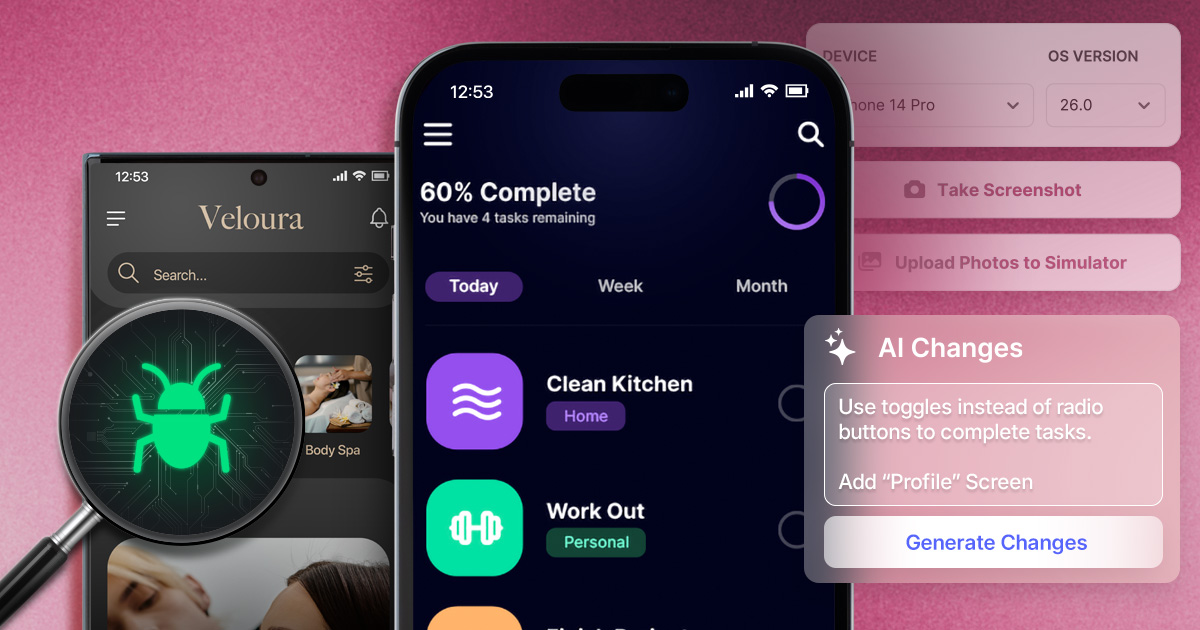
LastApp.ai provides access to 100+ cloud-based iOS simulators and Android emulators, allowing you to:
- Test across multiple devices instantly
- Validate different OS versions and screen sizes
- Run tests without heavy local setup
- Avoid buying, maintaining multiple expensive devices which become obsolete quickly.
No installations. No updates. No charging. No configuration headaches. Just instant testing.
Cross-Platform Validation
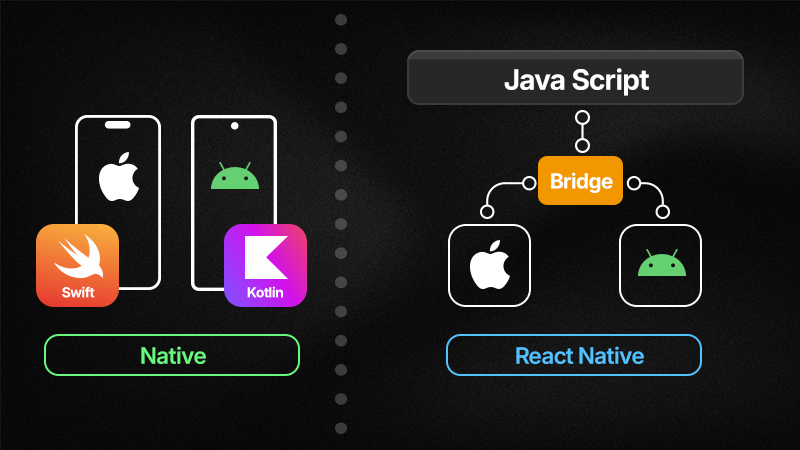
Because LastApp.ai generates true native apps (Swift for iOS and Kotlin for Android), testing isn't one-size-fits-all.
The platform ensures:
- iOS apps follow Apple design patterns
- Android apps align with Material Design principles
- Platform-specific issues are identified and addressed early
Final Takeaway: Confidence at Launch
Simulators and emulators are no longer optional, they are essential!
But managing them manually slows teams down and limits what's possible.
With LastApp.ai, testing becomes:
- Effortless & Instinctive
- Integrated
- Scalable
So instead of stitching together tools and workflows, you get a system where your app can be tested, validated, and optimized by default.
When testing is this comprehensive, something important happens. You stop worrying about whether your app will work and start focusing on growth, users, and features.
That's the difference between Launching with uncertainty & Launching with confidence!!
How to upload a media to your App
There are several instances when you need Media (photos, videos) to test your app. For instance Social Media apps, Photo-based apps, etc.
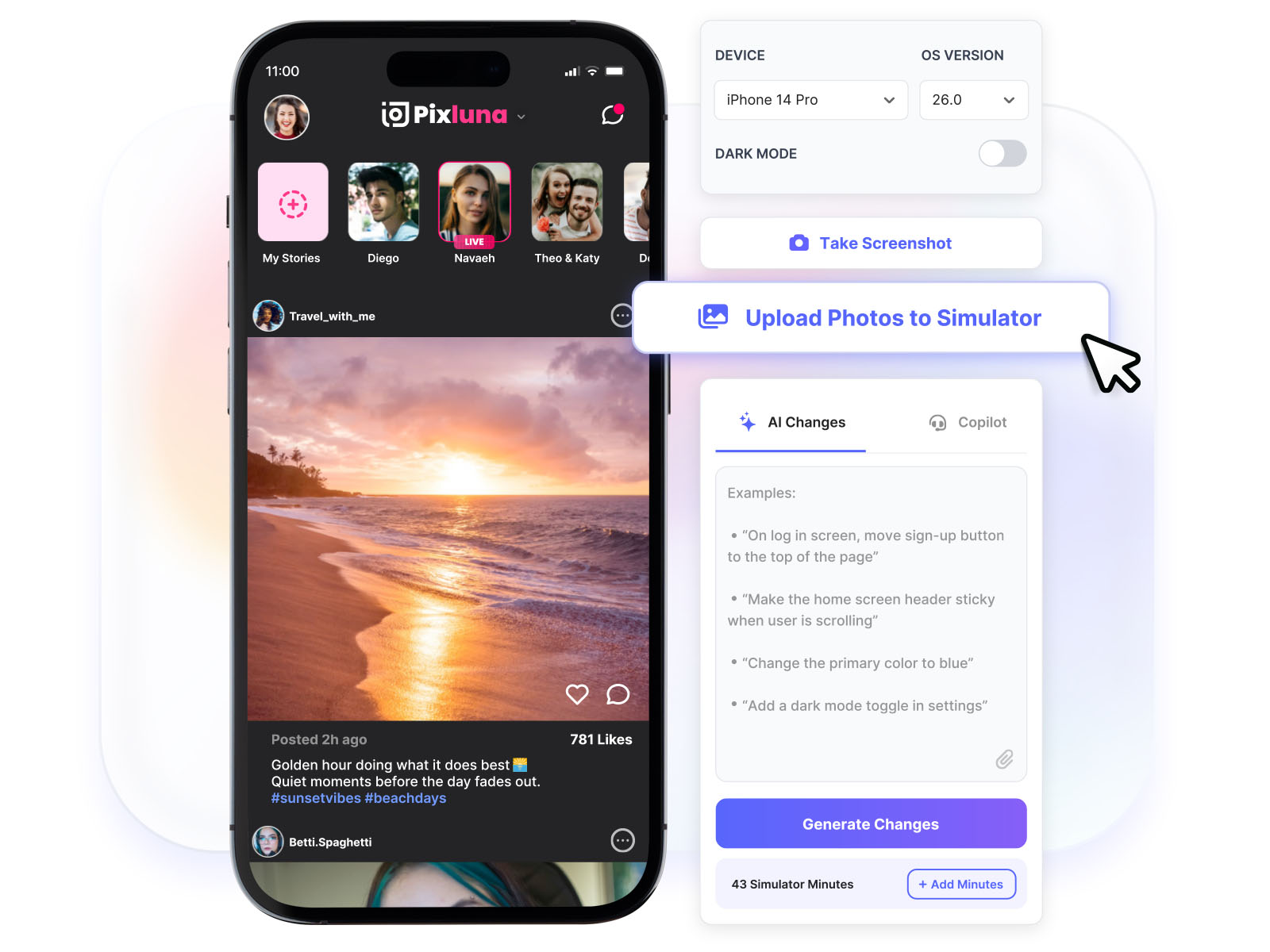
You can easily upload images and other media to your iOS and Android devices via the Simulator/Emulator screen.
The maximum file size for uploading media is 50 MB.
Supported Files
| Platform | Supported File Types |
|---|---|
| Android | All file types |
| iOS | PNG, JPEG, JPG, GIF, MP4 |
Files outside of these formats will not be processed on iOS simulators.
The Simulator/Emulator screen provides an Upload Photos button during active sessions, allowing you to upload media files directly to the simulated device's photo library.
Check/Add Simulator / Emulator minutes
Every LastApp user gets access to the iOS Simulators and Android Emulators (See Pricing page for more details)
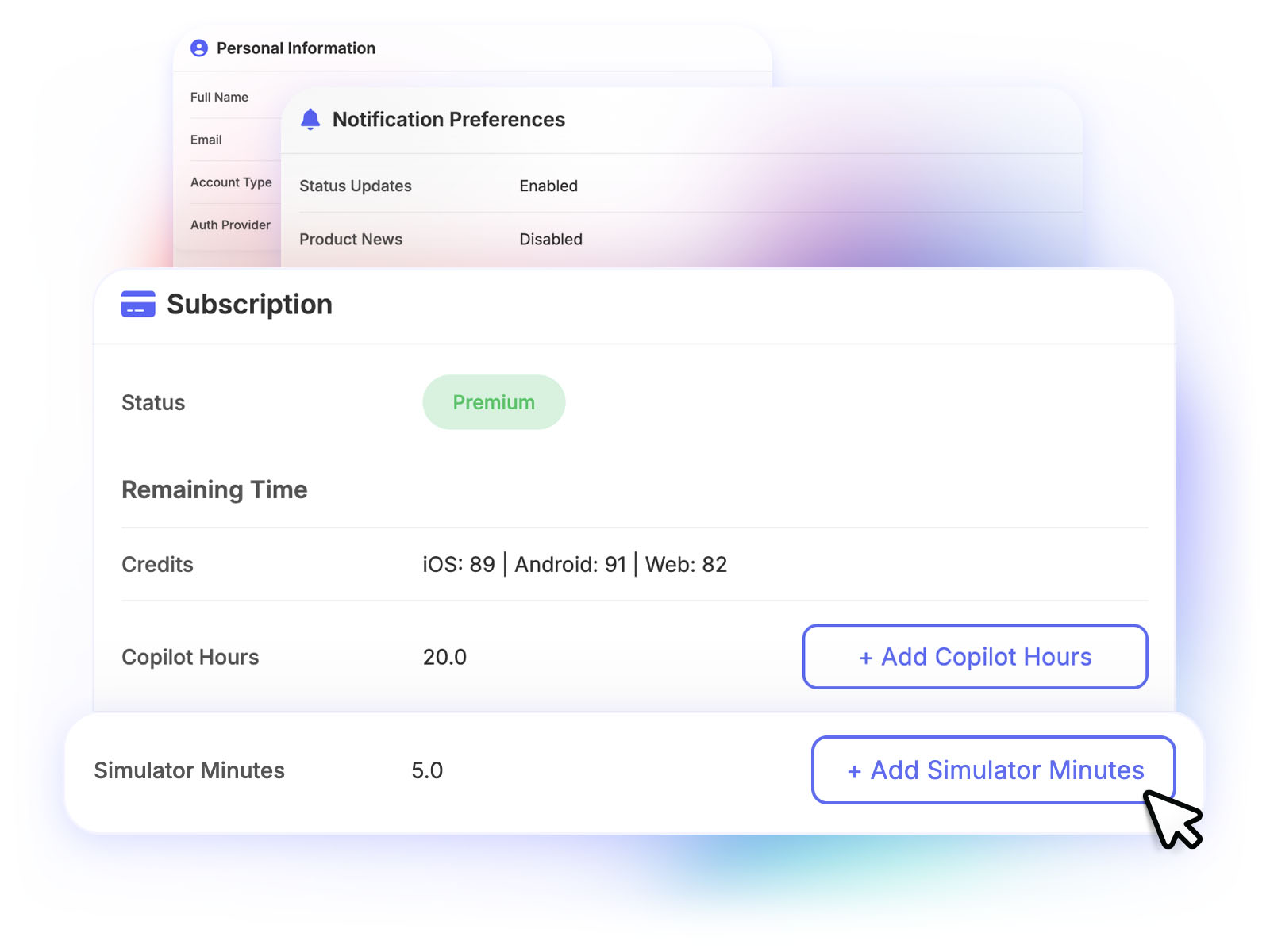
You can view the allocated Simulator / Emulator Minutes by accessing the Profile Page.
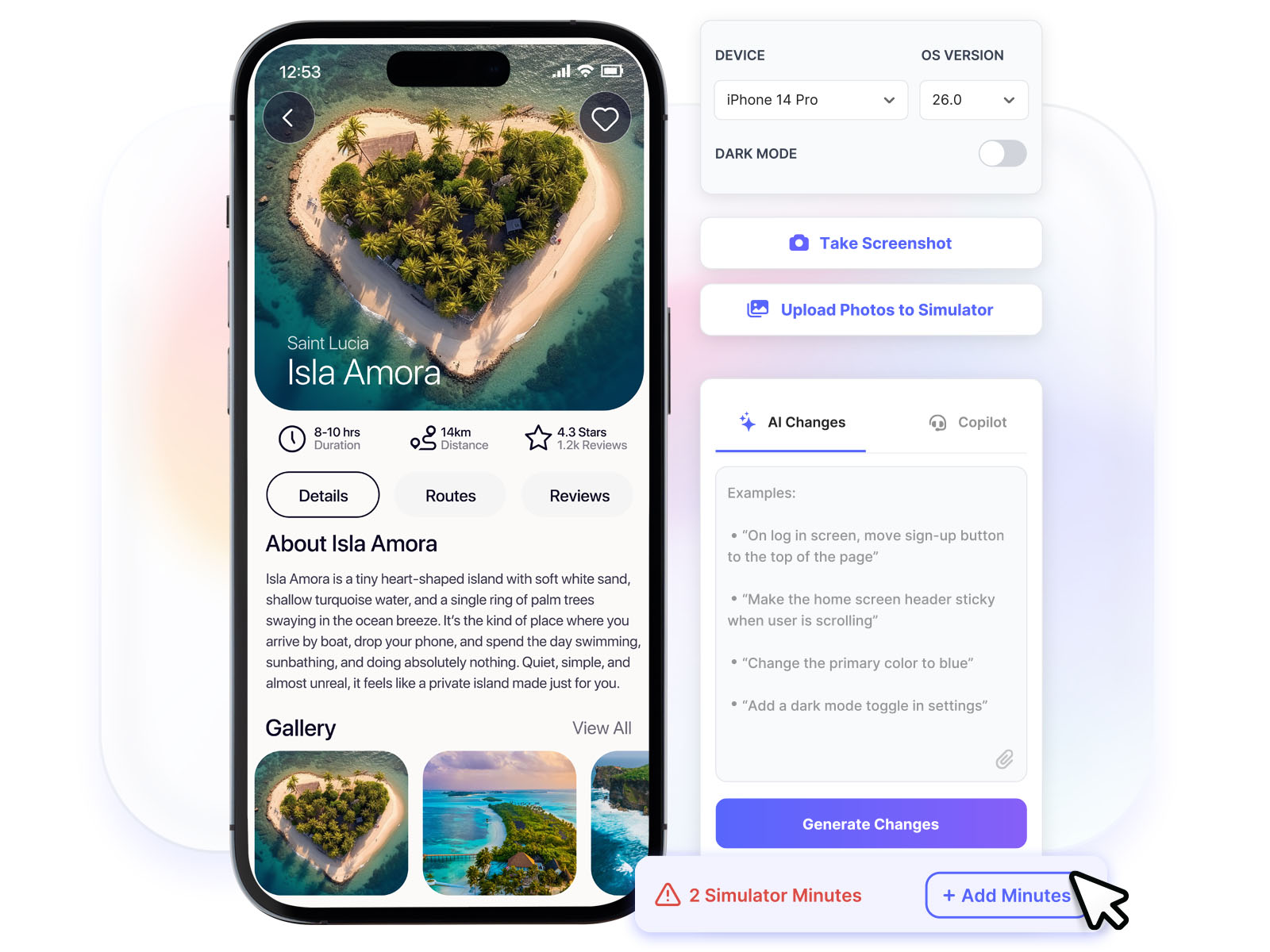
If you ever run out of minutes or close to running out of minutes, you can choose to add more minutes.
Alternatively, you can check remaining minutes / add minutes when you launch the Simulator / Emulator.
Capture Screenshots of your App using the Simulator / Emulator
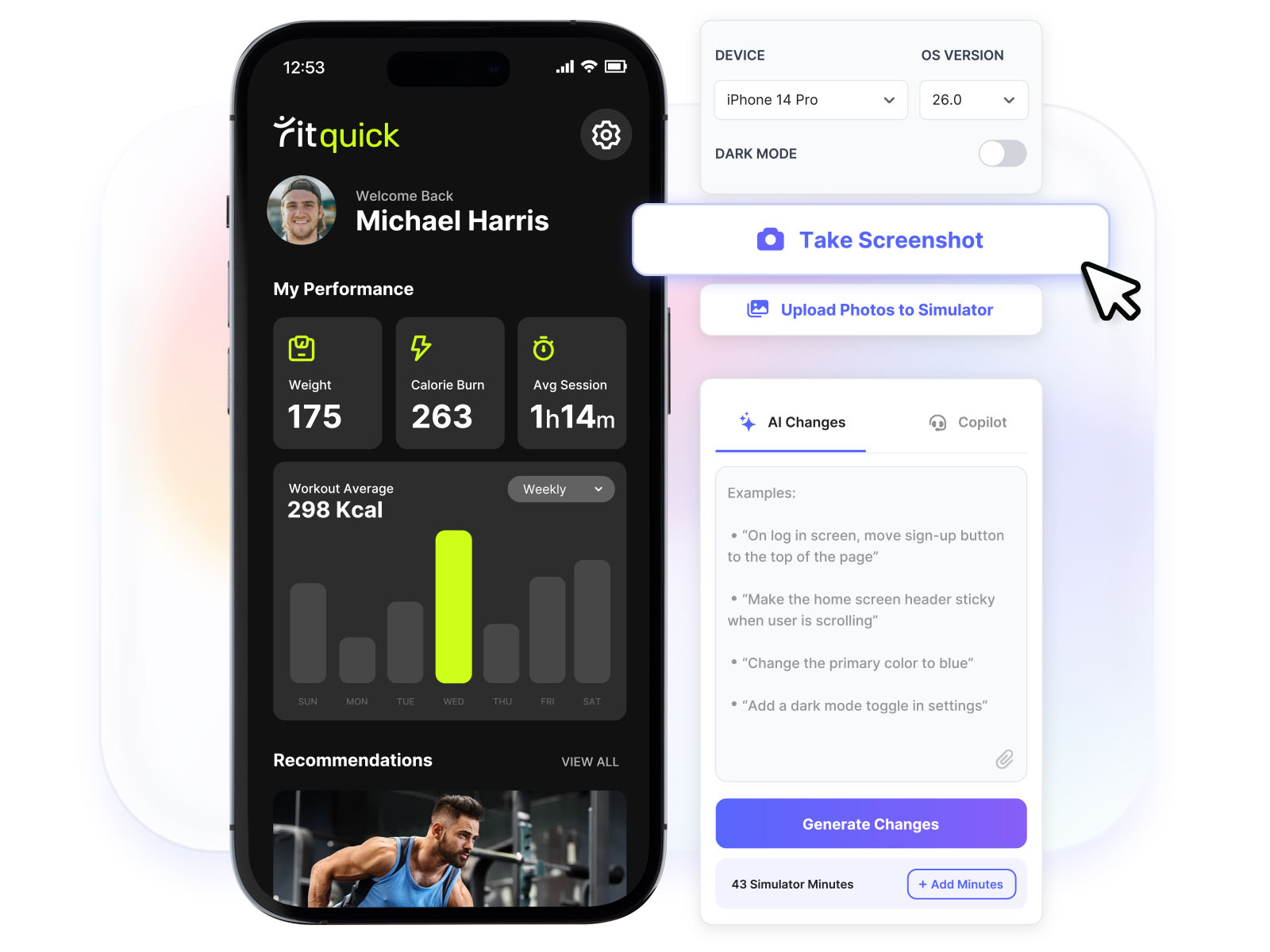
Every App creator needs screenshots of their App to publish to the Apple AppStore / Google PlayStore. Additionally, you may need screenshots for Marketing, Advertising, to showcase your app. Another potential use case is when you need to share your App screenshots with the LastApp Copilot team to fix any issue.
You can capture screenshots of your App right in the Simulator / Emulator screen.
Apple AppStore screenshot requirements
Apple has very specific screenshot resolution requirements for Publishing to the App Store. These screenshots are displayed when your App gets Approved and listed in the App Store. At least 3 screenshots are required.
Here are some allowed resolutions
iPhone 6.5": 1242 × 2688px, 2688 × 1242px, 1284 × 2778px or 2778 × 1284px
iPad 12.9" or 13": 2064 × 2752px, 2752 × 2064px, 2048 × 2732px or 2732 × 2048px
Correspondingly, you can select the following devices in the simulator to capture screenshots
iPhone 13ProMax 1284×2778
iPad Pro 12.9 2048×2732
* Please see the Apple link for the complete up-to-date list of device sizes & resolutions
https://developer.apple.com/help/app-store-connect/reference/app-information/screenshot-specifications/
Google PlayStore screenshot requirements.
Similarly, you can find the Google Play Store requirements here
https://support.google.com/googleplay/android-developer/answer/9866151?hl=en
Google Play Store requires at least 2, and up to 8, screenshots for phones (similar requirements for tablets/Wear OS) in JPEG or 24-bit PNG format. Images must be between 320px and 3840px, with a maximum 2:1 aspect ratio. To optimize, use 1080x1920 (portrait) or 1920x1080 (landscape) with a focus on in-app experiences.
Enhancing your screenshots
Go to the LastApp website > App Projects Dashboard > APPSTORE > SCREENSHOTS section, upload the captured screenshots, customize it to make it pop out and visually attractive. This will help make your App stand out in a crowded Marketplace.
Ready to test your next app on real simulators? Get Started with LastApp.ai and ship with confidence.